Track applications to a job
See who applied, download their CV, mark where each person stands and, if you want, show them.
Leitura: 4 minAtualizado a 11 de novembro de 2026
Este guia ainda não está no seu idioma: mostramo-lo em inglês.
Every application to your jobs lands in the portal. From there you see each person's details and keep track with your team.
Before you start
- The job must use Form under Application. With External link, people apply on your website and here you only see Link clicks.
- The owner and people with the Admin or Manager role can see applications.
What you'll get: every application with its status and history, shared with your team.
Steps
1. Find the applications
You'll hear about them three ways:
- By email: each application arrives with the subject New application: {title}.
- On the location dashboard: a notice with # new applications.
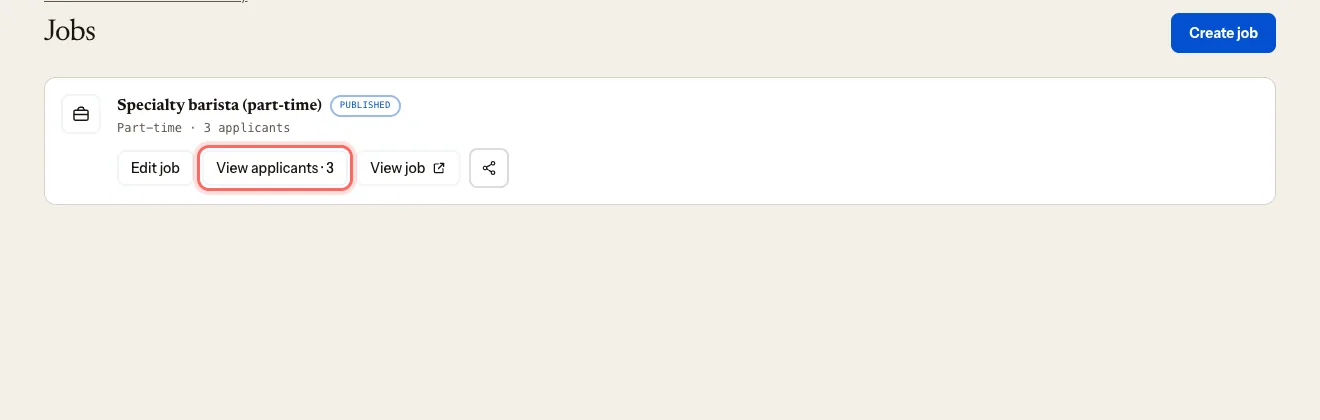
- In your jobs list: each job shows View applicants · N.
Tap View applicants to open the job's Applicants section.
2. Review each application
Each application shows the name, date, email and phone, plus whatever the person sent: message, LinkedIn, portfolio, cover letter.
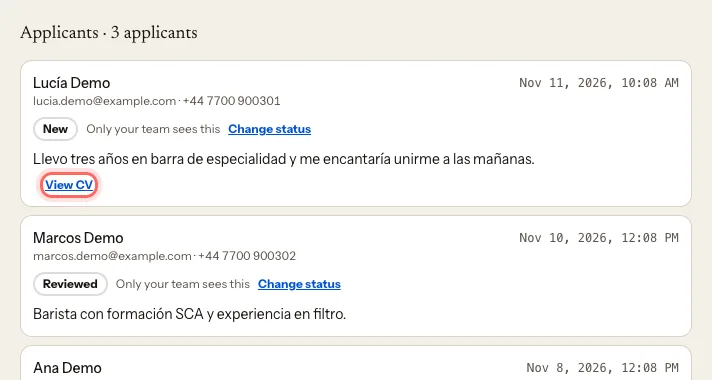
- If they uploaded a file, tap Download CV.
- If they left a link, tap View CV.
3. Mark where they stand
On the application, tap Change status.
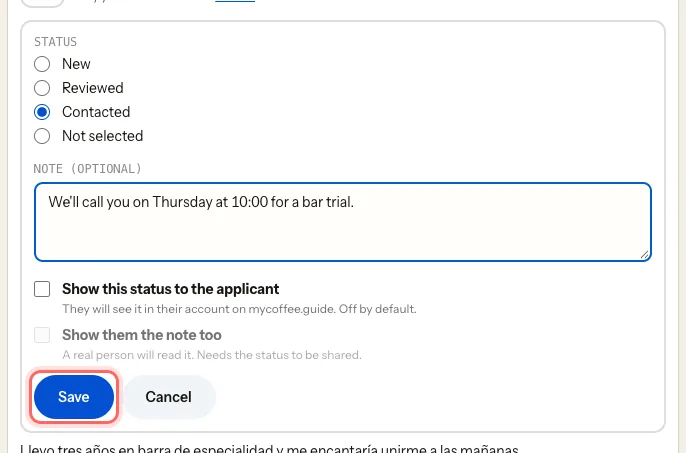
Choose New, Reviewed, Contacted or Not selected.
Optionally, add a Note (optional) for your team. If you don't select them, the field becomes Reason for rejecting (optional).
Decide whether to show it to the applicant:
- Show this status to the applicant: they'll see it in their mycoffee.guide account. Off by default.
- Show them the note too: only if you've shared the status. Write it knowing they'll read it.
Tap Save.
History shows who changed what, and when.
4. Get in touch
There's no chat in the portal. Email or call the person using the details on the application. You can also simply reply to the New application email — your reply goes straight to them.
What happens next
- If you share the status, the person sees it in their account, under Jobs. We don't email them about the change, so if it matters, write to them yourself.
- Applications stay on the job even after you archive it.
- You can also see them all together under Customers → Job applicants.
Troubleshooting
I'm getting views but no applications. Check the job uses Form and its Status is Published.
"Customers" shows "Name hidden". The portal shows you the options you have to see those contacts. While the job is open, you always have them under Applicants.
A colleague can't see the applications. Their role is Viewer. Change it to Manager: Invite your team and choose roles.
Este guia foi útil?
Próximo passo
Publish an eventAnnounce a cupping, a workshop or a concert on your listing and in the guide's events listings.Guias relacionados
- Post a jobPost a job on mycoffee.guide/empleos and receive applications in the portal.
- Unpublish or close a jobTake a job off the website once you've filled the role, without losing the applications.
- See your listing statsHow many people see your listing, where they click and who signs up for your events and jobs.