Publish events and jobs
Announce cuppings, trainings or visits, and post your company's openings on My Coffee Guide.
Leitura: 5 minAtualizado a 11 de novembro de 2026
Este guia ainda não está no seu idioma: mostramo-lo em inglês.
Your events show up in the guide's events listing and your job posts under Jobs.
Before you start
- The profile must be yours (verified owner), or you must be on its team with the Admin or Manager role.
- For an event: title, date and time, venue and, if you like, a landscape photo.
- For a job: title, description, employment type and salary.
What you'll get: an event or a job post live in the guide, and the list of who signs up or applies.
Steps
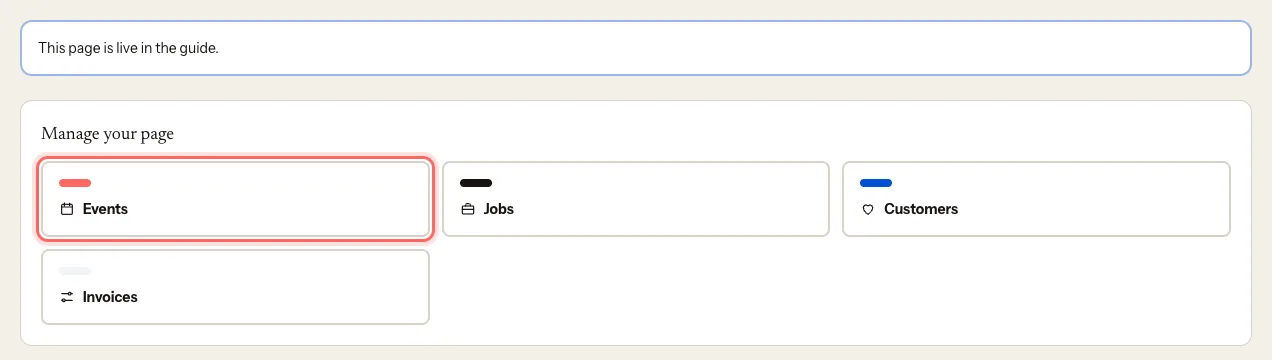
In your company's dashboard, under Manage your page, you'll find the Events and Jobs cards.
1. Publish an event
Open Events and tap Create event.
Fill in Title (required) and Description.
Optional: under Cover photo, tap Upload photo.
Choose when it Starts (required) and Ends.
Under Time zone, choose the one where the event takes place. It starts with your computer's or phone's zone: change it if the event is somewhere else. The Starts and Ends times are in that zone, and that's how the guide shows them.
If you don't tick anything, we use the address and city on your page. If the event is elsewhere, tick The event is somewhere else, not at our address and fill in Address and City.
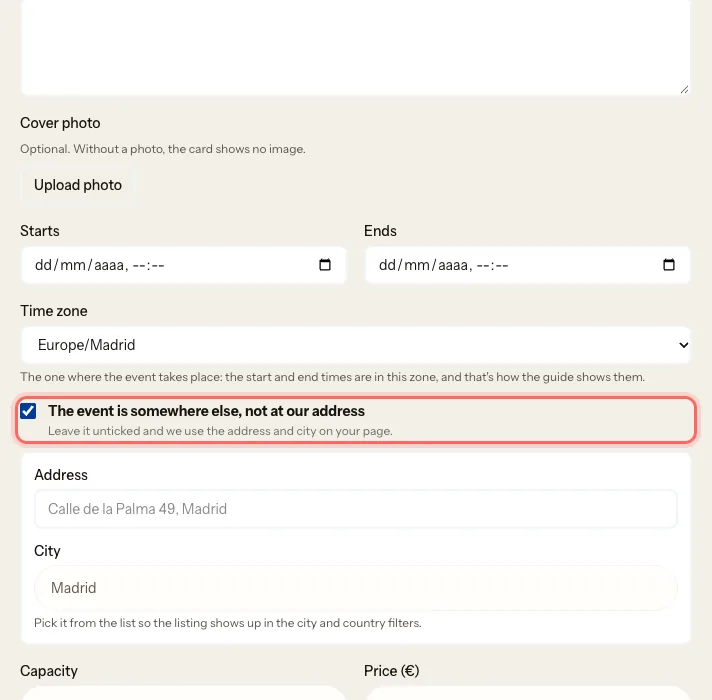
Optional: Capacity and Price (€). Leave it blank to show no price; enter 0 to show it as free. The price is for information only: nothing is charged through the guide.
Under Sign-ups, choose:
- Form: people sign up on the guide. Name and email are always asked; you can also ask for phone, party size and notes.
- Tickets link: you send people to your website or ticketing platform.
Under Status, choose Published.
Tap Save.
2. Publish a job
Open Jobs and tap Create job.
Fill in Title (required) and Description.
Choose the Employment type: Full-time, Part-time, Temporary or Internship.
Optional: Min salary (€), Max salary (€) and Period. For a fixed amount, enter the same figure in both.
If the job isn't at your office or warehouse, tick The job is somewhere else, not at our address and fill in Address and City.
Optional: Closes on. The job stays open all that day and disappears from the guide when the day ends.
Under Application, choose Form (people apply on the guide) or External link (your careers page).
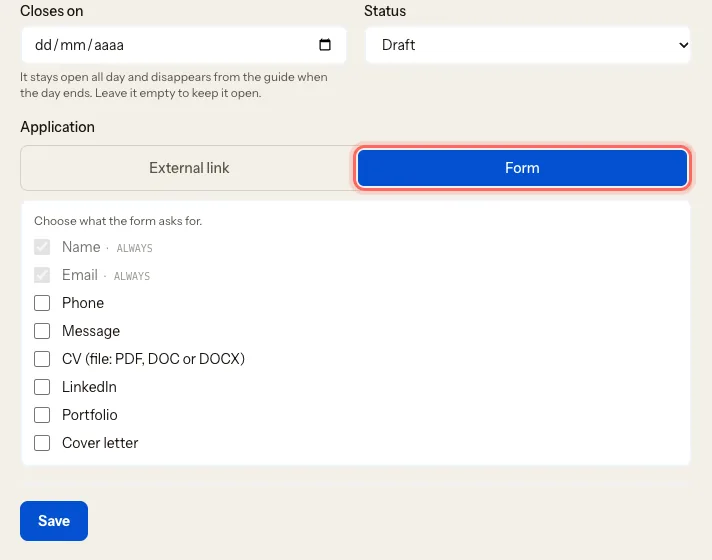
Under Status, choose Published and tap Save.
Write it in your own language: it's translated into the others automatically.
3. Unpublish or delete
- To take it off the guide without losing it: open the event or job, change Status to Draft or Archived and tap Save.
- To delete it for good: Delete event or Delete job. The portal warns you that the sign-ups or applications go too and that it can't be undone. Confirm with Yes, delete event and sign-ups or Yes, delete job and applications, or tap Cancel.
- A job with a Closes on date closes by itself when that day ends, and the list then says Closed. If you fill the role sooner, archive it.
What happens next
- You get an email for every person who signs up or applies.
- You'll see them inside each event (Sign-ups) or job (Applicants), and all together under Customers. See See your profile stats.
- For each applicant you can Change status (New, Reviewed, Contacted, Not selected) and, if you like, share it with them using Show this status to the applicant.
Common issues
I want to download the sign-up list. Inside the event, next to Sign-ups, tap Download CSV. If people have signed up and you don't see the button, write to us at mycoffee.guide/contacto.
The event time is wrong. Check the event's Time zone: it must be the one where the event takes place.
I don't see "Feature this job". Featuring a job is only available to coffee shops.
Este guia foi útil?