Invite your team
Give other people at your company access to the portal and choose what each of them can do.
Leitura: 3 minAtualizado a 11 de novembro de 2026
Este guia ainda não está no seu idioma: mostramo-lo em inglês.
Invite your colleagues to help with events, job posts and your profile stats.
Before you start
- You need to be the verified owner of the profile, or have the Admin role.
- Have each person's email address to hand.
What you'll get: other people with access to your company's dashboard.
Steps
In the portal, open Settings.
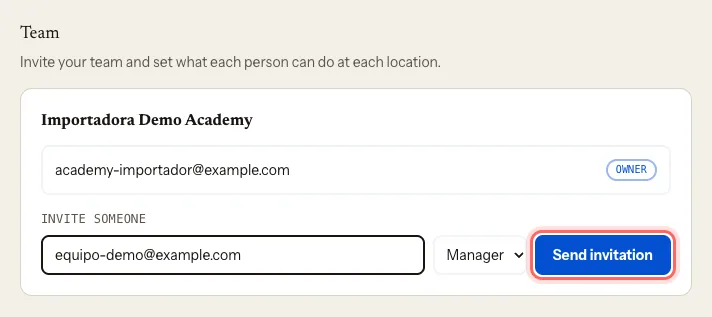
Scroll down to Team and find Invite someone.
Type the person's email address.
Choose their role:
- Admin: everything except the listing's ownership.
- Manager: edits the listing, events and jobs.
- Viewer: read only.
Tap Send invitation. You'll see Invitation sent.
What happens next
- The person gets an email. They tap the link, sign in to the portal with that same email address and tap Accept invitation.
- Until they accept, they show as Pending. You can Resend the invitation, Revoke it, or Copy link to send it another way.
- To take someone off the team, tap Remove.
What each role can save
- Admin and Manager can save the same day-to-day things as the owner: "The company", the description, the catalogue, events and job posts.
- Viewer can see the dashboard but can't save. If they try, they'll see Your role on this team can only view. Ask an admin to change it if you need to edit.
Common issues
The invitation says "This invitation is for…". The person is signed in with a different email. They should tap Sign in with another account and use the one the invitation was sent to.
"This invitation has expired. Ask for a new one." Tap Resend under Team.
I can't see the "Team" section. Only the owner and Admin users see it.
Someone on the team sees "Your role on this team can only view". Their role is Viewer. Change it to Manager or Admin under Team.
Este guia foi útil?