Bulk-upload lots
If you have lots of lots, upload them in one go with a file instead of one by one.
阅读时间:3 min更新于 2026年11月11日
这篇指南还没有你的语言版本,因此以英文显示。
Upload all your lots with a spreadsheet. Then complete each one's variety and process.
Before you start
- The farm must be yours and verified, or you must be on its team with the Admin or Manager role.
- You need a spreadsheet app (Excel, Google Sheets, Numbers) that can save as CSV.
- Have your list of lots: the name and, if you know it, the harvest year.
What you'll get: all your lots created at once, as cards under Our coffees.
Steps
In your farm's dashboard, scroll down to Add lots in bulk.
Tap Download the template. You'll get
lotes.csv.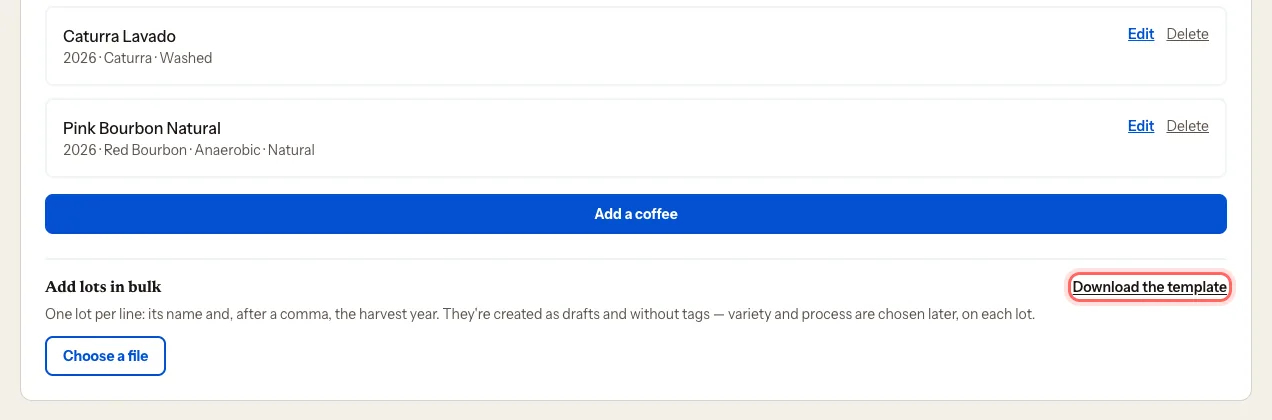
Open it. Enter one lot per row:
- Name (required)
- Harvest year (optional)
Save the file as CSV.
Back in the portal, tap Choose a file and pick your CSV.
Tap Create {n} lots.
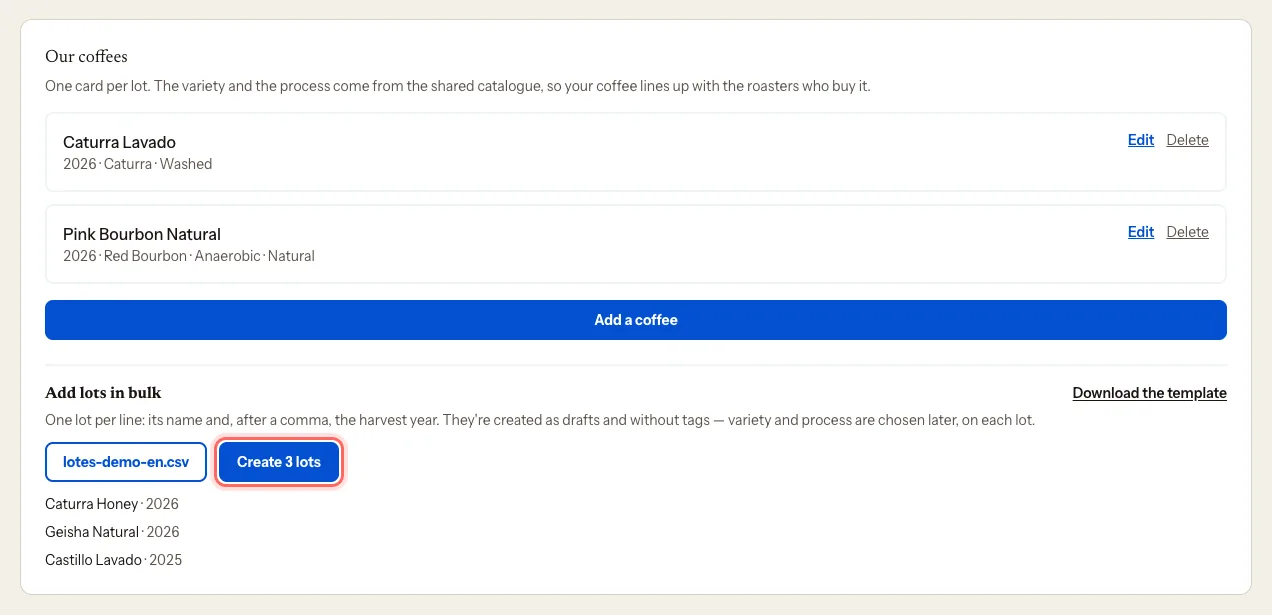
You'll see, for example, 12 created as drafts.
What happens next
- The lots appear under Our coffees, marked in review.
- They're created without a variety or process. Open each one with Edit and complete it: Add a coffee lot. Without that, the farm can't go live.
Common problems
I see "{n} skipped". Some rows had no name or were malformed. Check the file and upload just those rows again.
The file won't let me pick it. It must be a CSV. In Excel: File → Save As → CSV.
这篇指南有帮助吗?