Invite your team
Give other people access to your farm's dashboard.
阅读时间:3 min更新于 2026年11月11日
这篇指南还没有你的语言版本,因此以英文显示。
Invite your family, your agronomist or whoever helps with the page.
Before you start
- The farm must be yours and verified.
- You need each person's email address.
What you'll get: other people sign in to your farm's dashboard with their own account.
Steps
In the portal, tap Settings.
Scroll down to Team.
Under Invite someone, enter the email address.
Pick the role: Admin, Manager or Viewer.
Tap Send invitation. You'll see Invitation sent.
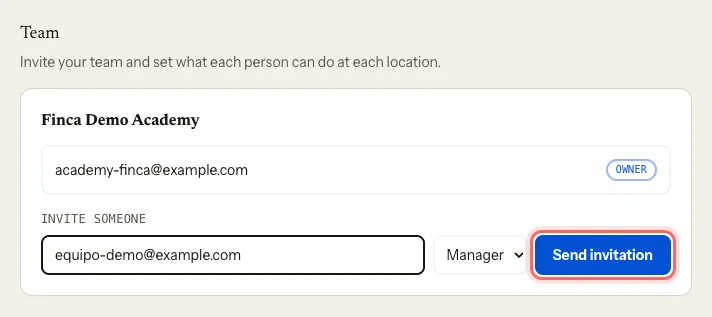
The person gets an email with a link. They must sign in to the portal with that same email and accept.
What each role can do
| Role | The portal says |
|---|---|
| Admin | Everything except the listing's ownership |
| Manager | Edits the listing, events and jobs |
| Viewer | Read only |
An Admin or Manager can save the farm profile, lots, events and jobs just like the owner. A Viewer can see the dashboard, but saving shows Your role on this team can only view. Ask an admin to change it if you need to edit.
Manage invitations
- Resend: sends the email again.
- Copy link: copies the invitation so you can send it over WhatsApp or however you like.
- Revoke: cancels an invitation that hasn't been accepted yet.
- Remove: takes someone who already joined off the team.
Common problems
I see "Verify a location to invite your team". Your claim is still pending. You can invite people once we approve it.
Someone on the team sees "Your role on this team can only view". Their role is Viewer. Change it to Manager or Admin under Team.
The person says the invitation isn't for them. They must sign in with the exact email you sent it to. If they use another one, resend it to that address.
这篇指南有帮助吗?