Add a new coffee shop or suggest one
If your coffee shop isn't in the guide yet, add it from the portal. If it isn't yours, suggest it from the website.
阅读时间:4 min更新于 2026年11月11日
这篇指南还没有你的语言版本,因此以英文显示。
Your coffee shop doesn't show up in the search? Add it yourself. Know one that should be in the guide but isn't yours? Suggest it.
Before you start
- To add your coffee shop you need a portal account: Sign up to the business portal.
- Have your shop's Google Maps link to hand. We use it to fill in the details for you, and it makes verification quicker.
- Search for your coffee shop on the Claim mine tab first. If it's already there, you don't need to add it: Claim your coffee shop.
What you'll get: your coffee shop in the guide, in your name, once our team has reviewed it.
Steps
1. Add your coffee shop with Google Maps
Open your shop on Google Maps, tap Share and copy the link.
In the portal, under What do you run?, choose Coffee shop (or Roastery if you roast).
Open the Add new tab.
Paste the link into Google Maps link and tap Find my place.
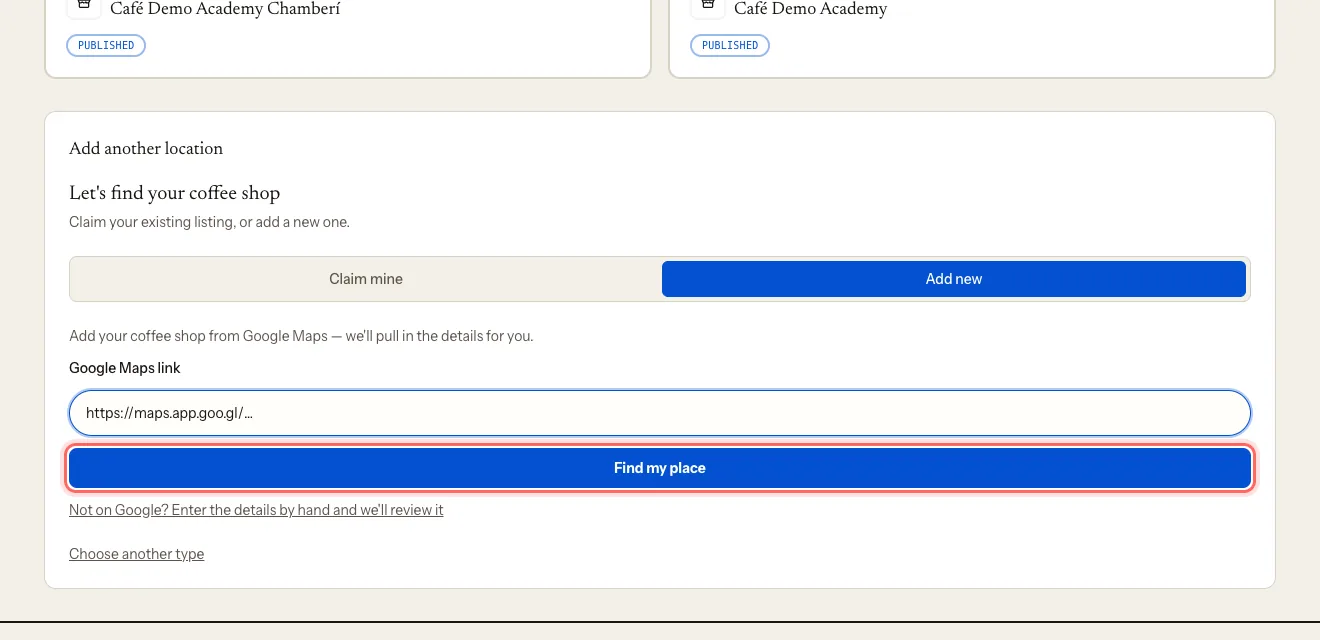
On Is this your place?, check the details and tap Yes, add it.
Confirm the shop is yours with a code by text or email, just like a claim. See Claim your coffee shop, step 2.
If you get It's already on My Coffee Guide, tap Claim it — someone added it before you.
2. Add it by hand
If your shop isn't on Google Maps:
On the Add new tab, tap Not on Google? Enter the details by hand and we'll review it.
Fill in Coffee shop name, City, Address and Phone. Website is optional.
If your city isn't in the list, tap Add it and choose the Country.
Tap Add my coffee shop.
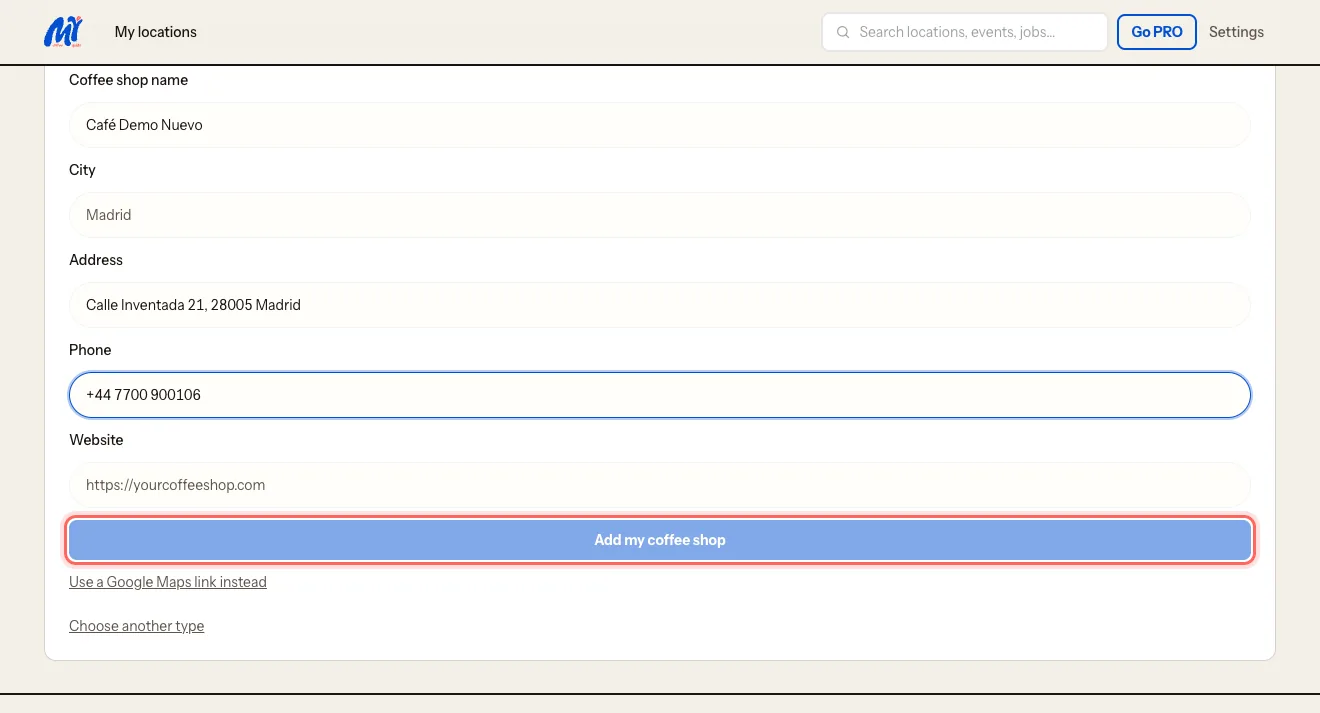
Without a Google link we can't verify the shop on our own, so our team reviews your request by hand.
3. Suggest a coffee shop that isn't yours
On mycoffee.guide, tap Suggest a coffee shop.
Under First things first: is it yours?, choose I know it and it should be here.
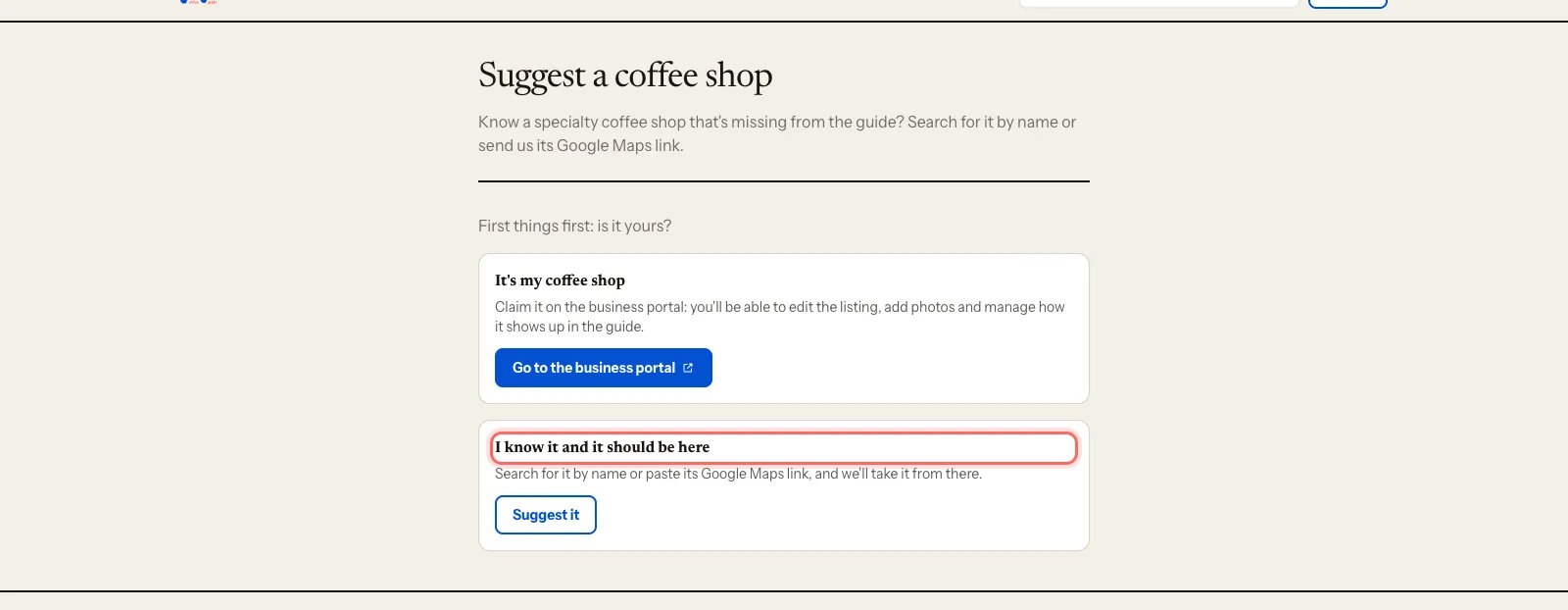
In Find the coffee shop, type its name and city and pick it from the list. You can also paste its Google Maps link.
Tap Send suggestion.
If you choose It's my coffee shop, we take you to the portal so you can add it yourself.
What happens next
- You'll get an email: We've received {name}.
- The listing stays under review. On the dashboard you'll see Your listing is pending review before it goes public.
- You can already edit it in the meantime: photos, hours, description.
- When we publish it, we email you and it appears on the map.
- Suggestions from the website are reviewed by our team. If the coffee shop belongs in the guide, we publish it.
Troubleshooting
I get "That link points to a place, not a business". You copied the link to a street or a city. Open the shop's own listing on Google Maps (with its name, photos and hours) and use its Share button.
I get "Google lists this place as permanently closed". Check your Google Maps listing. If it's correct, add your coffee shop by hand.
How long does the review take? A person does it, so it depends on volume. If a few days go by with no news, contact us at mycoffee.guide/contacto.
这篇指南有帮助吗?
下一步
Edit your listing: photos, hours and featuresUpdate your coffee shop's description, photos, opening hours, contact details and features.相关指南
- Sign up to the business portalCreate your My Coffee Guide business portal account in a minute, with Google, your email or your phone.
- Claim your coffee shopProve you run your coffee shop and start editing its listing on My Coffee Guide.
- Manage several locationsRun all your coffee shops from one account and switch between them in a click.