Claim your company's profile
Show that you're behind your importing company and start managing its page and catalogue.
읽는 시간: 4 min2026년 11월 11일 업데이트
이 가이드는 아직 사용하시는 언어로 제공되지 않아 영어로 보여드립니다.
Many importers are already in the guide. If yours is one of them, claim its profile so you can manage it yourself.
Before you start
- You need an account on the business portal, login.mycoffee.guide. You can sign in with Google, with an email link or with a text-message code.
- If your profile has a website, sign in with an email address on the same domain (for example, ana@yourimporter.com). That way verification is instant.
What you'll get: the profile is yours and you can complete your details and your catalogue. No coffee guide says who brings the green coffee in: your profile is the missing link between the farms and the roasters.
Steps
1. Find your profile
There are two ways in. Use whichever is closer to hand.
From your company's page on mycoffee.guide
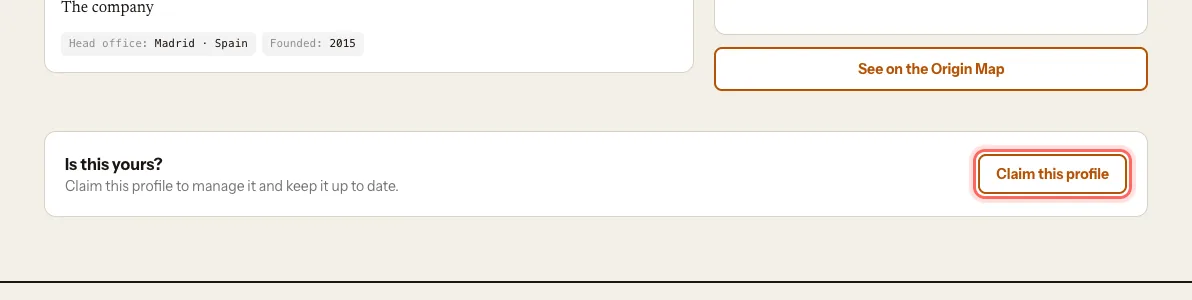
Open your company's page on the Origin Map.
Under Is this yours?, tap Claim this profile.
Sign in to the portal if asked.
If it's your first time, the portal asks for your details first. Fill them in and tap Continue: the claim carries on by itself and you land on Let's confirm this is yours.
From the portal
Go to login.mycoffee.guide.
Under What do you run?, choose Importer.
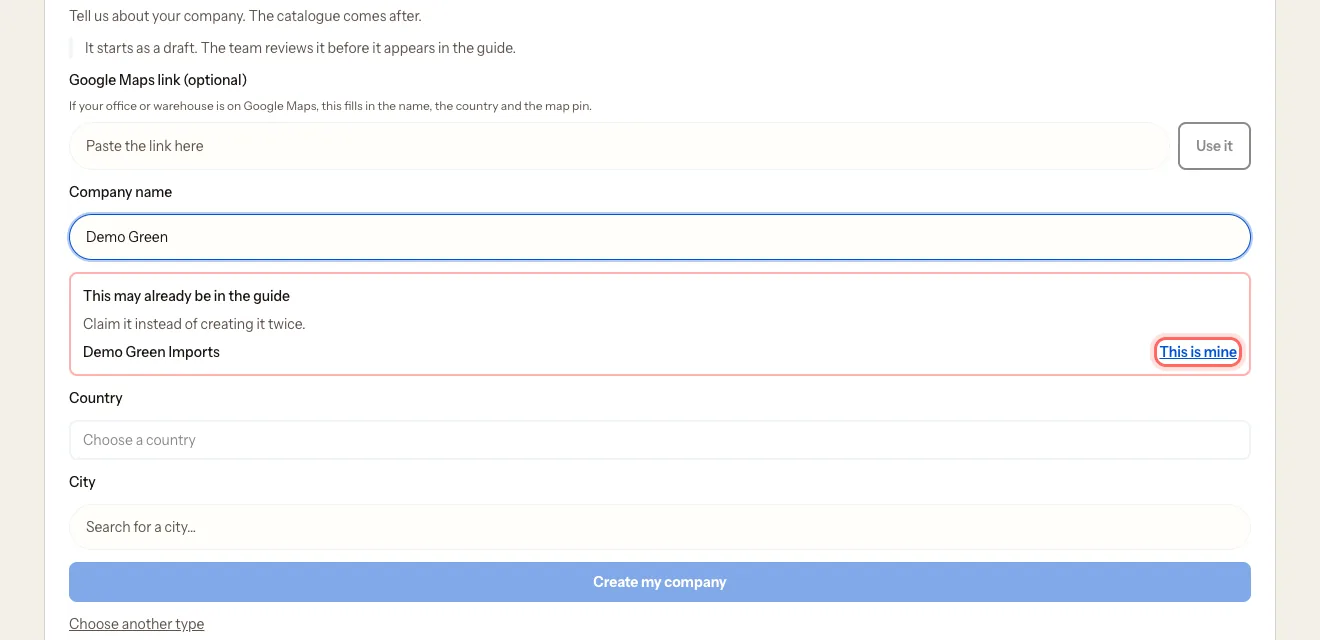
Type your company's name in Company name.
If it's already in the guide, you'll see This may already be in the guide. Tap This is mine.
The first time, before What do you run?, the portal asks for your name and city and then for your details under a second First, tell us who you are screen: full name, Your role in the business, contact email and phone. Only our team sees them.
2. Confirm it's yours
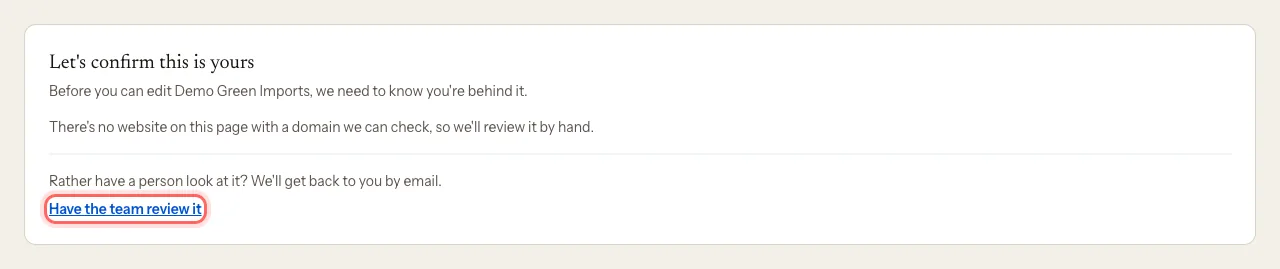
You'll land on Let's confirm this is yours. There are two ways:
With a code sent to your email (only if the profile has a website and you signed in with an email on that domain)
- You'll see You signed in as {your email}, which is on {domain}. Tap Send me the code.
- Enter the six digits in Your code.
- Tap Confirm.
If the code doesn't arrive, tap Send it again.
With a review by our team
Tap Have the team review it.
You'll get an email confirming we've received it.
If your profile has no website, you'll see …we'll review it by hand straight away: that's the normal route.
3. If you received an invitation
Sometimes we send you the invitation ourselves. It arrives with the subject Claim {name} on My Coffee Guide.
- Tap Claim the page in the email.
- Sign in to the portal with the same email address the invitation was sent to.
- Tap Manage my company.
With an invitation you don't need a code: the profile is yours straight away.
What happens next
- With a code or an invitation: the profile is yours straight away and you go into its dashboard.
- With a team review: we email you with the answer. Until then, you'll see Let's confirm this is yours when you sign in.
- Claiming doesn't change whether your page shows in the guide: if it was live, it stays live.
Common issues
I don't see "Send me the code". Your profile has no website, or you signed in with an email on another domain (a Gmail address, for instance). Ask for a team review, or sign out and back in with your company email.
The code doesn't work. It expires after 10 minutes and allows five attempts. Tap Send it again for a new one.
I see "This invitation is for…". You're signed in with a different account. Tap Sign in with another account and use the email the invitation was sent to.
I see "This invitation has expired". Invitations last 30 days. Write to us and we'll send a new one.
I see "This claim wasn't approved". We couldn't confirm the company is yours. Write to us at mycoffee.guide/contacto and we'll look at it again.
이 가이드가 도움이 되었나요?