Sign up to the business portal
Create your My Coffee Guide business portal account in a minute, with Google, your email or your phone.
読了時間:3 min2026年11月11日 更新
このガイドはまだお使いの言語に対応していないため、英語で表示しています。
The business portal is where you manage your coffee shop on My Coffee Guide. There's no password to remember.
Before you start
- You need one of these: a Google account, an email address, or a mobile phone that can receive texts.
- If you already have a mycoffee.guide account (to save favourites, for example), sign in with the same email — it's the same account.
What you'll get: a portal account, ready to claim your coffee shop or add it.
Steps
1. Sign in to the portal
Go to login.mycoffee.guide. You'll see Sign in to your portal.
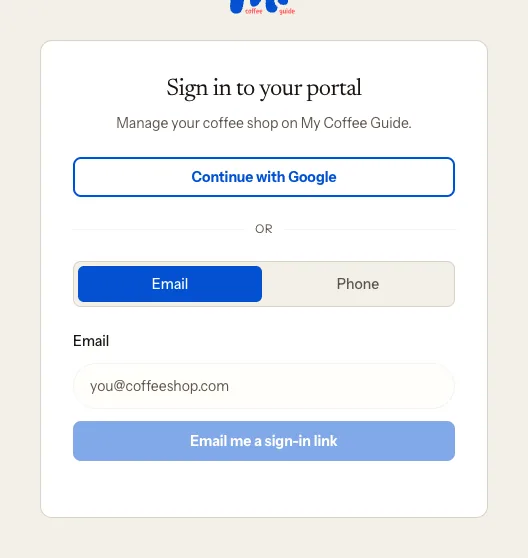
Pick how you want to sign in:
- Continue with Google: choose your Google account and you're in.
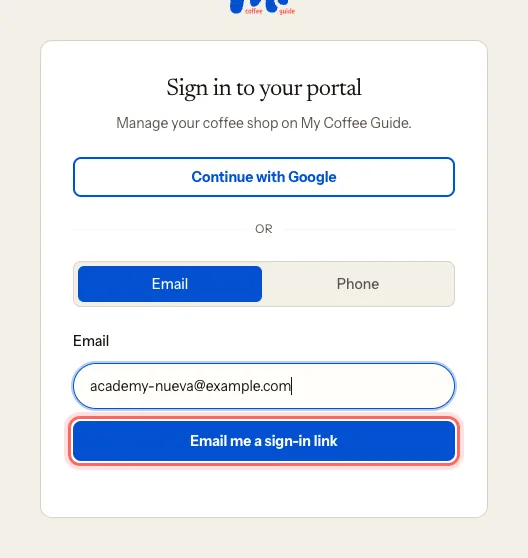
- Email: enter your email and tap Email me a sign-in link. Open the email, tap the link and, on Almost there, tap Sign in.
- Phone: enter your number with the country code (for example, +34) and tap Text me a code. Type the six digits into Verification code and tap Verify and sign in.
2. Tell us who you are
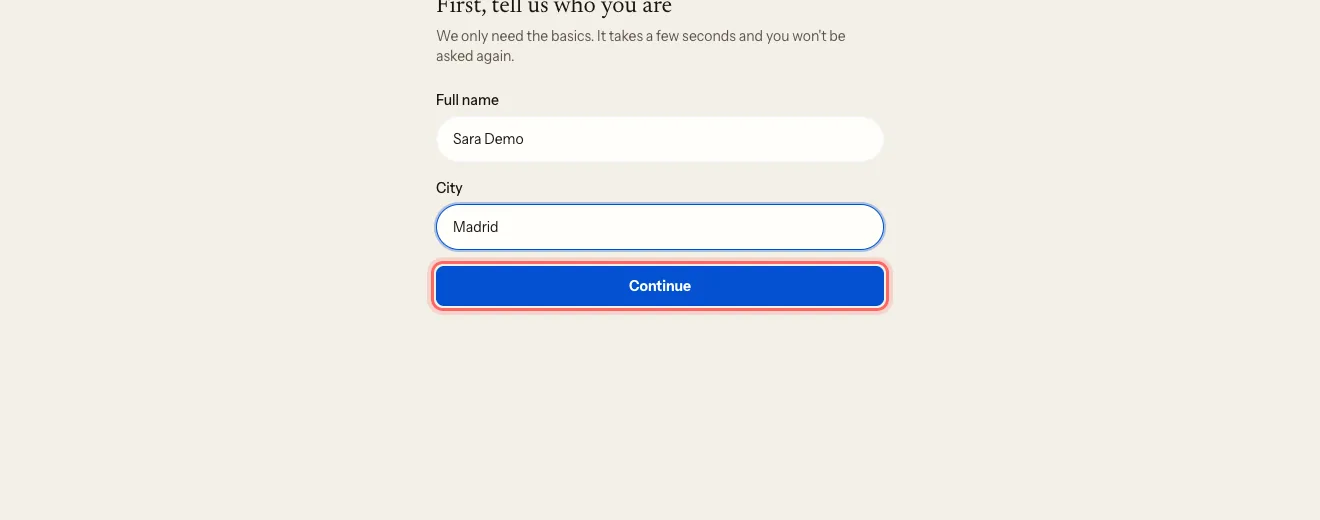
The first time, you'll see First, tell us who you are.
Enter your Full name and your City.
If you signed in with your phone, add a Contact email too. It's not used to sign in, only to reach you.
Tap Continue.
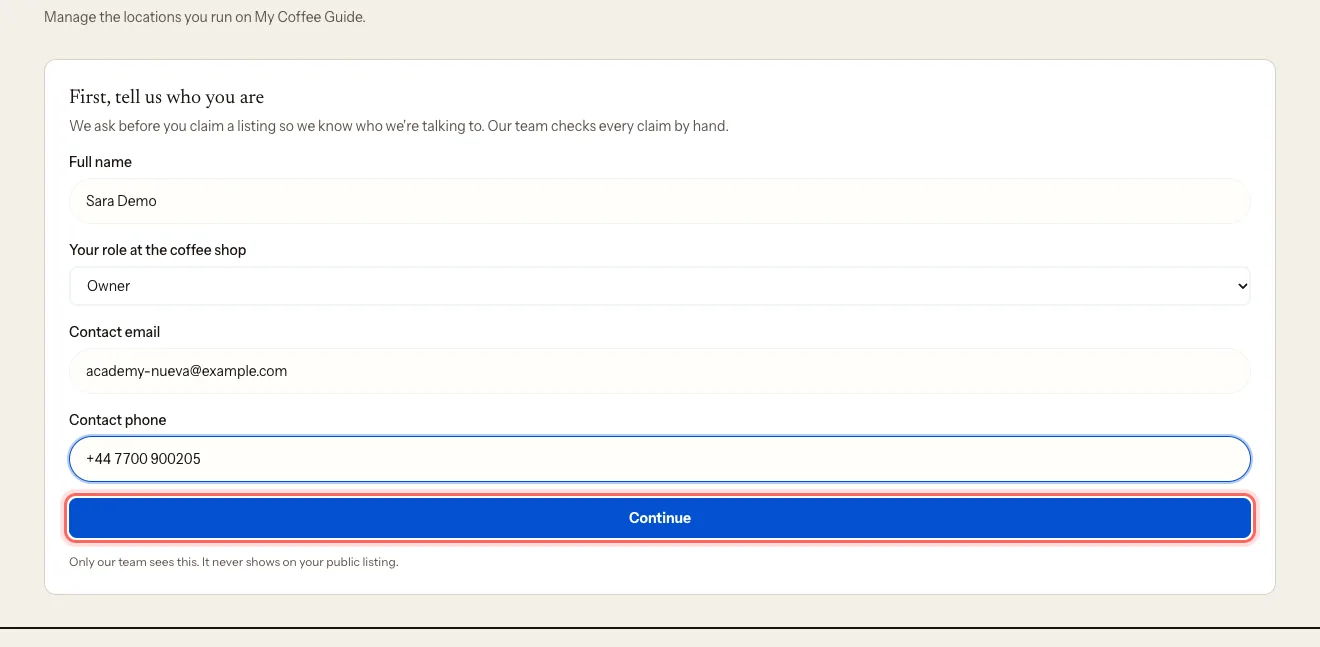
Right after that you'll see a second First, tell us who you are screen. It lets us know who we're talking to before we give you a listing:
Choose Your role in the business (for example, Owner) and enter your Contact email and Contact phone. Only our team sees them — they never appear on your public listing.
Tap Continue.
You only see these two screens the first time.
3. Choose what you run
Under What do you run?, choose Coffee shop. If you roast coffee, with or without a café, choose Roastery.
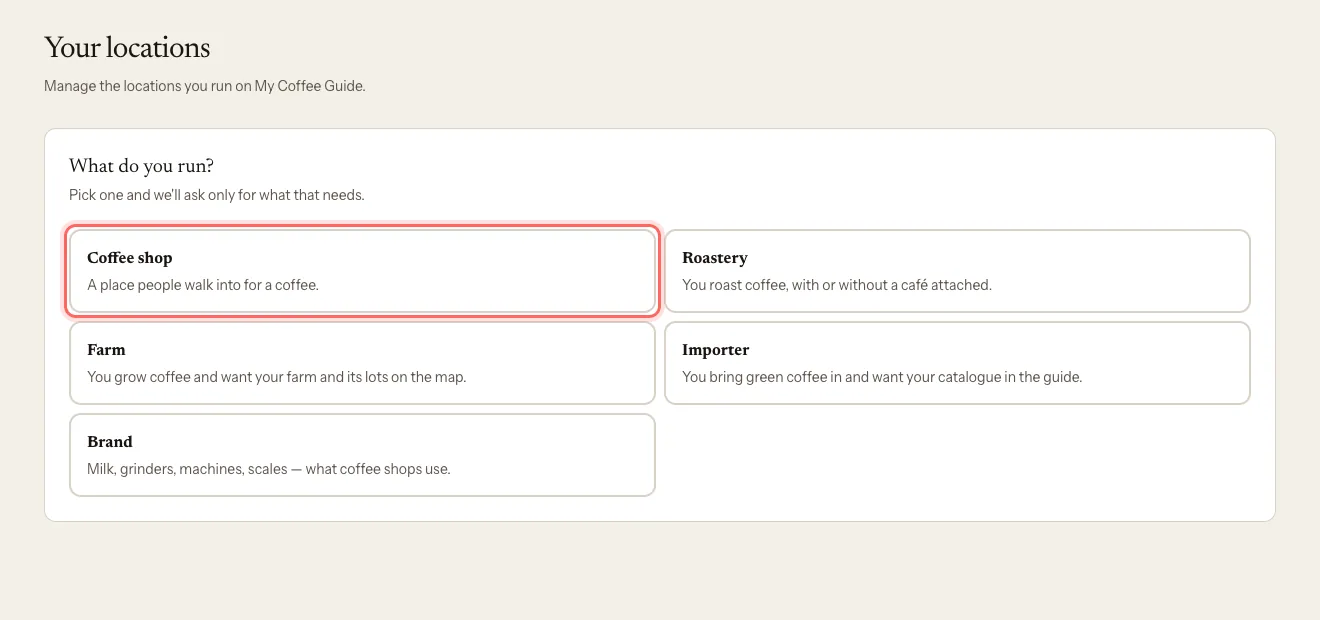
From here, go on to Claim your coffee shop if it's already in the guide, or Add a new coffee shop or suggest one if it isn't.
What happens next
You have an account. Next time, sign in the same way from login.mycoffee.guide.
Troubleshooting
The link in the email doesn't work. Each link works once and then expires. If it fails, request a new one with Email me a sign-in link. Some work email systems open links automatically to scan them — that's why we ask you to tap Sign in on the Almost there screen.
I get "We couldn't run the anti-spam check". Your ad blocker is stopping the check. Turn it off for this page, or use Continue with Google.
The text message doesn't arrive. Make sure the number includes the country code. If it still doesn't come, sign in with email or Google.
I want to change the phone number I sign in with. Go to Settings → Sign-in phone and tap Send code.
このガイドは役に立ちましたか?