Complete your farm profile to get it published
Fill in what the guide needs to publish your farm, and tell its story well.
Lecture : 5 minMis à jour le 11 novembre 2026
Ce guide n’est pas encore disponible dans votre langue : nous l’affichons en anglais.
Your farm goes live once it has the minimum. Here's how to see what's missing and fill it in.
Before you start
- The farm must be yours (Claim your farm or Create your farm profile), or you must be on its team with the Admin or Manager role.
- Have ready: the farm's region, its location on the map, the altitude, a contact email or phone, and a nice landscape photo for the cover.
What you'll get: a complete page, ready for our team to publish on the Origin Map.
Steps
1. See what's missing
At the top of the dashboard you'll see one of these messages:

- Not ready to publish yet: the list below shows what's missing.
- Everything's here. The team reviews it before it goes live.: nothing else to do.
- This page is live in the guide.: it's already visible on mycoffee.guide.
The list may ask for:
- The map pin — latitude and longitude.
- The region where the farm is.
- At least one coffee, with its variety and process. → Add a coffee lot
- One of your coffees is missing its variety or its process.
Altitude and contact details don't hold up publishing, but fill them in: they help people looking for your coffee, and the team checks them when reviewing.
There's no publish button. Our team publishes the page once everything is there.
2. Fill in "The farm"
Scroll down to The farm.
Fill in Region and Town or locality.
Enter Latitude and Longitude. They're your pin on the map. Enter both numbers or neither.
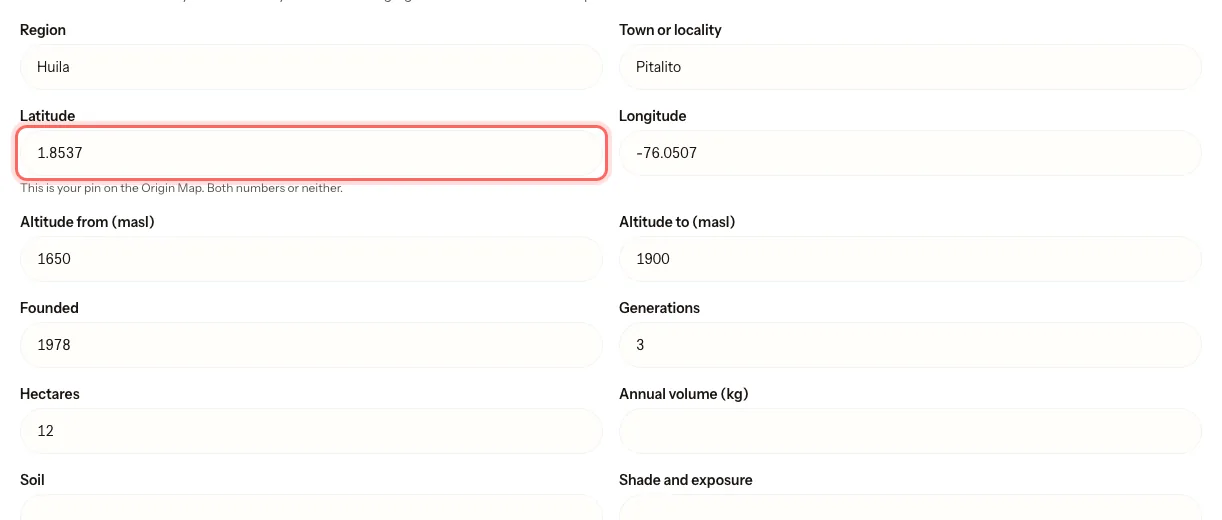
Enter Altitude from (masl) and Altitude to (masl).
If you like, add Founded, Generations, Hectares, Annual volume (kg), Soil and Shade and exposure.
Under Certifications, list them separated by commas.
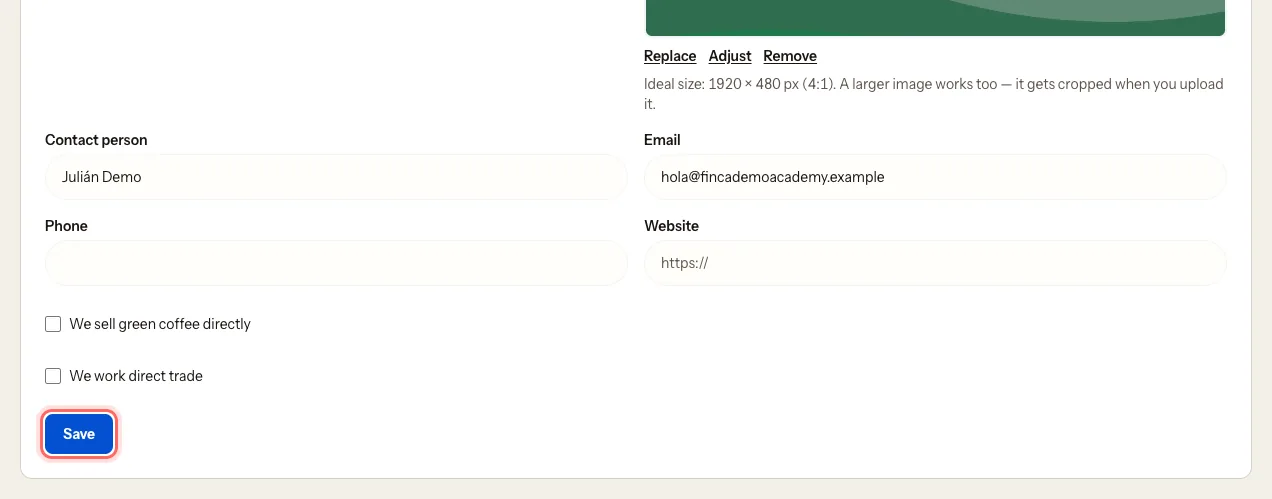
Fill in at least one way to get in touch: Contact person, Email, Phone or Website.
Tick We sell green coffee directly and We work direct trade if they apply.
Tap Save. You'll see Saved.
How to get the latitude and longitude: open Google Maps and press and hold your farm's spot (on a computer, right-click). Two numbers appear, like 2.1934, -75.6311. The first is the latitude and the second the longitude. Copy each one into its field.
3. Add the cover image
The cover is the wide banner at the top of your page.
Under Cover image, tap Upload an image.
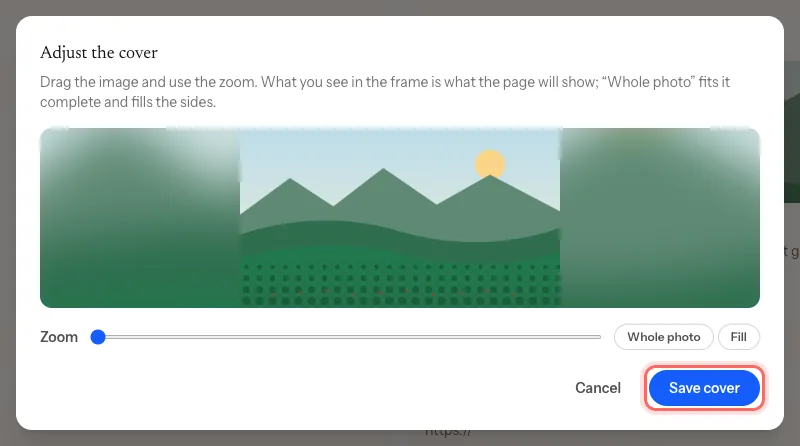
Adjust the cover opens. Drag the photo and use the Zoom.
Tap Whole photo to show the entire photo, or Fill to cover the whole banner.
Tap Save cover.
Then tap Save on the form as well. Otherwise the cover won't stick.
Ideal size: 1920 × 480 px. A larger photo works. If a warning says it will look soft, zoom out or use a larger photo.
Farms don't have a logo or a photo gallery. Just the cover.
4. Write the description
Under Description, write a short Summary and a longer Description.
Write it in your own language. The other six are translated automatically.
Tap Save. You'll see Saved. The other languages will follow shortly.
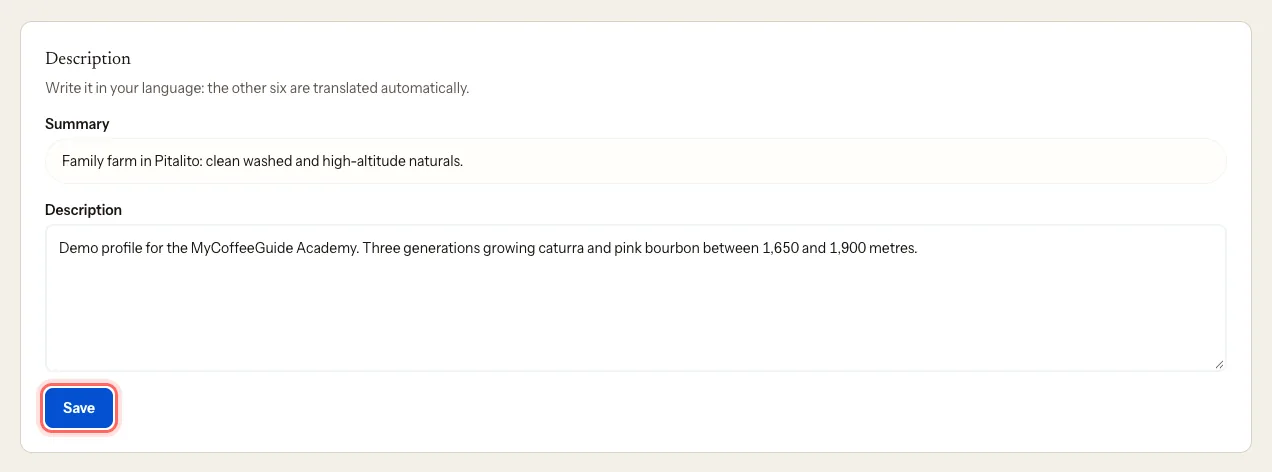
Tell your story: who works the farm, since when, and what makes it different.
What happens next
Once the list is complete, you'll see Everything's here. The team reviews it before it goes live. We'll email you when the page is live.
Common problems
I can't see where to add the farm's varieties or processes. They come from your lots. Add them on each coffee: Add a coffee lot. The overall altitude does go in The farm.
I can't change the name or the country. Our team handles them, because the name is part of your page's address. See Request a name change.
I see "Your claim is still pending". We're still confirming the farm is yours. You'll be able to save once we approve it.
I see "Your role on this team can only view". Your role is Viewer. Ask an admin on the team to change it to Manager.
I see "Something's still missing. Write to us and we'll tell you what." Write to us at mycoffee.guide/contacto.
Ce guide vous a-t-il aidé ?