Add a coffee to your catalogue
Add a coffee to your catalogue and link it to the farm it came from, so the chain reads from farm to cup.
Lecture : 5 minMis à jour le 11 novembre 2026
Ce guide n’est pas encore disponible dans votre langue : nous l’affichons en anglais.
Every coffee in your catalogue is linked to its farm. That link is what makes your work visible: people looking at the farm see who brings its coffee in, and people looking at you see where it comes from.
Before you start
- You need to be the verified owner of the profile, or be on its team with the Admin or Manager role.
- For each coffee, have to hand: the farm or producer, the variety, the process and, if you have them, the harvest year, the altitude and the SCA score.
What you'll get: a coffee in your catalogue, linked to its farm. With the first one, your profile meets "at least one coffee" and "the origins you work with".
Steps
1. Link the farm
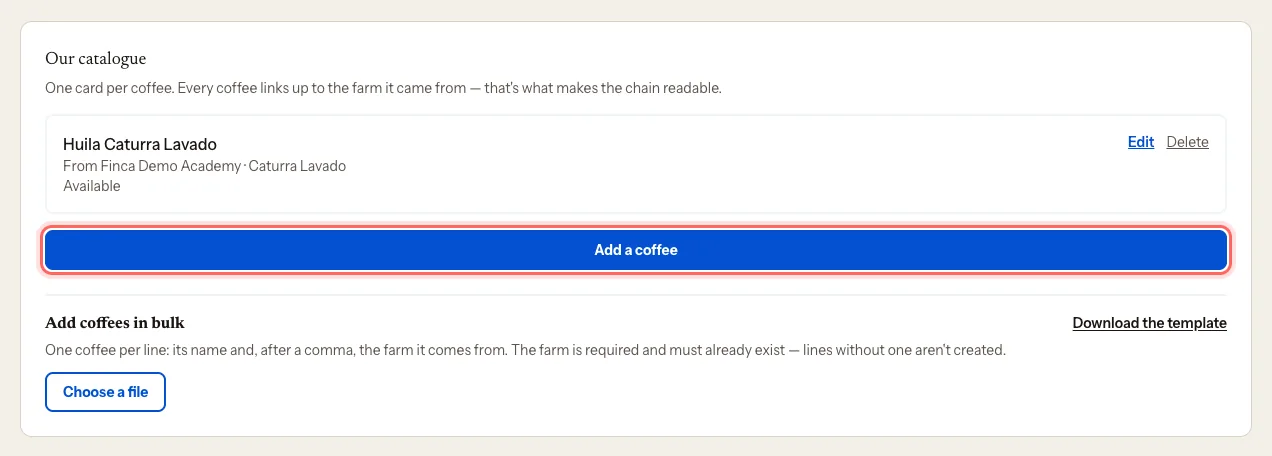
In your company's dashboard, scroll down to Our catalogue and tap Add a coffee.
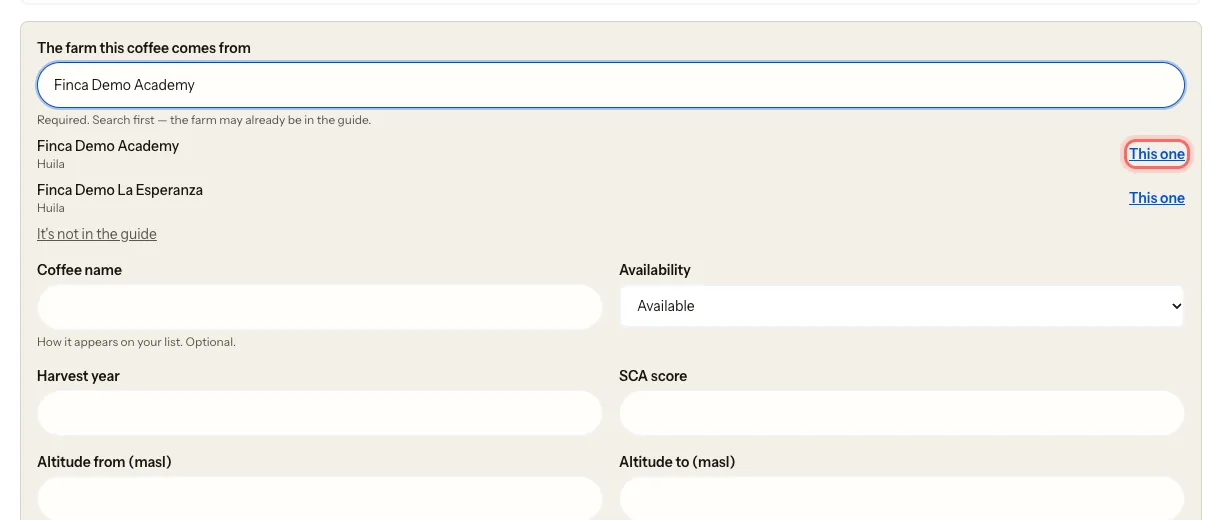
Under The farm this coffee comes from, type the farm or producer name. It's required.
If it shows up, tap This one.
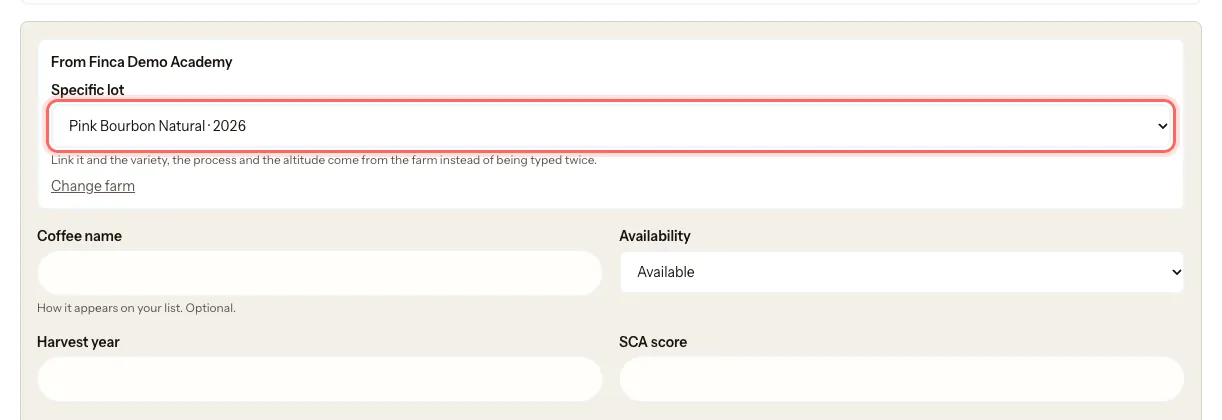
If the farm has lots in the guide, pick one under Specific lot. Link it and the variety, the process and the altitude come from the farm, so you don't have to type them. If you're not sure which one it is, leave Don't link a lot.
If the farm doesn't show up, tap It's not in the guide and add it yourself. We explain how in Add a missing farm and invite it.
2. Fill in the coffee
Everything except the farm is optional:
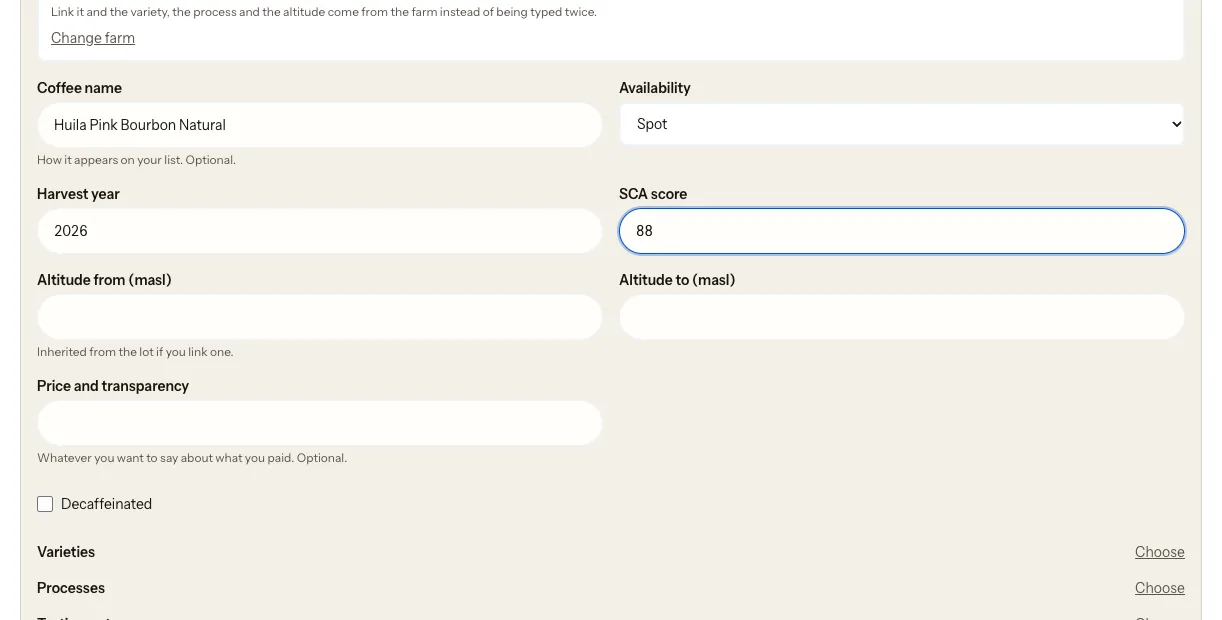
- Coffee name: as it appears on your list.
- Availability: Available, Spot, Forward or Sold out.
- Harvest year and SCA score.
- Altitude from (masl) and Altitude to (masl). If you linked a lot, they're inherited.
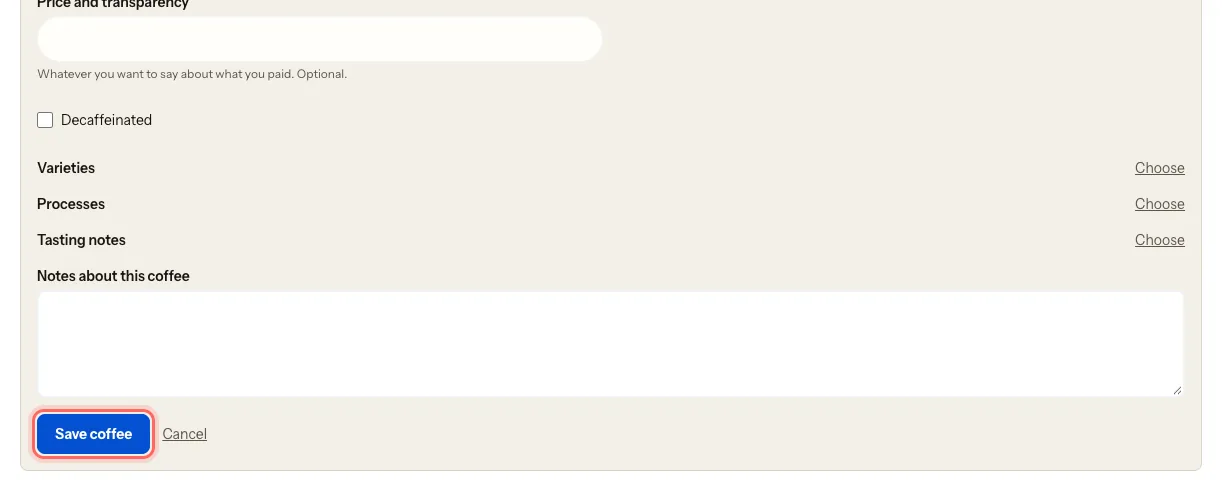
- Price and transparency: whatever you'd like to say about what you paid. It doesn't currently appear on your public page.
- Notes about this coffee.
3. Choose the variety, process and tasting notes
If the coffee is decaf, tick Decaffeinated. If you linked a lot, the box starts the way the lot has it; you can change it.
Under Varieties, tap Choose, search and tick the ones this coffee has. Tap Close.
Do the same under Processes and Tasting notes.
Tap Save coffee.
About the process: choose a single base process (Washed, Natural, Honey or Wet-hulled). Fermentations can be added on top. A honey subtype also needs the Honey base, and a decaf coffee takes a single decaf method with the Decaffeinated box ticked. If something doesn't add up, the portal tells you under Processes and won't let you save until you fix it.
The variety and the process come from a catalogue shared with farms and roasters. That way your coffee lines up with the farm's and with the roaster's.
What happens next
- The coffee appears in Our catalogue marked in review. Our team reviews it and publishes it. If it's decaf, the card says so: Decaf.
- If something's missing, the card says Missing: followed by what's missing, for example Missing: the variety. Tap Edit and complete it.
- You can change a coffee with Edit or remove it with Delete.
Common issues
I see "Choose only one base process (washed, natural, honey…)". You've ticked two base processes. Keep just one.
I see "A decaf method only applies to a decaf coffee". Tick Decaffeinated or remove the method.
"Link the farm this coffee comes from." The farm is missing. Search for it or add it with It's not in the guide.
"The coffee catalogue isn't available right now…" It's a temporary glitch. Save the coffee without variety or process and complete it later with Edit.
I have lots of coffees. Upload them all at once: Bulk-upload coffees.
I see "Your claim is still pending". We're still confirming the profile is yours. You'll be able to save once we approve it.
I see "Your role on this team can only view". Your role is Viewer. Ask an admin on the team to change it to Manager.
Ce guide vous a-t-il aidé ?