See your profile stats
See how many people visit your page, where they click, and who signs up for your events or applies to your jobs.
Reading time: 3 minUpdated November 11, 2026
Everything that happens on your Origin Map page, in one place.
Before you start
- You need to be the verified owner of the profile, or be on its team with the Admin or Manager role.
- Your page needs to be live: the numbers start when people visit it.
What you'll get: a sense of what people look at on your profile, and the contact details from your events and jobs in one place.
Steps
In your company's dashboard, under Manage your page, open Customers.
Under Your listing in numbers, choose the Period. The default is Last 30 days.
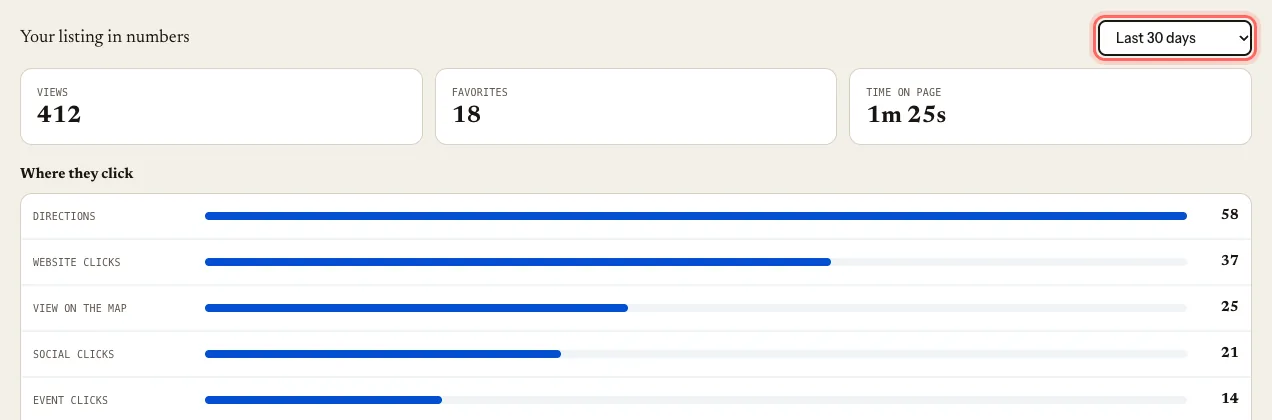
Check the numbers:
- Views: how many times your page was opened.
- Where they click: Website clicks, Phone clicks, Social clicks and the other links.
- Favorites: how many people saved your page.
- Time on page: how long they stay. With few visits you'll see Not enough visits yet.
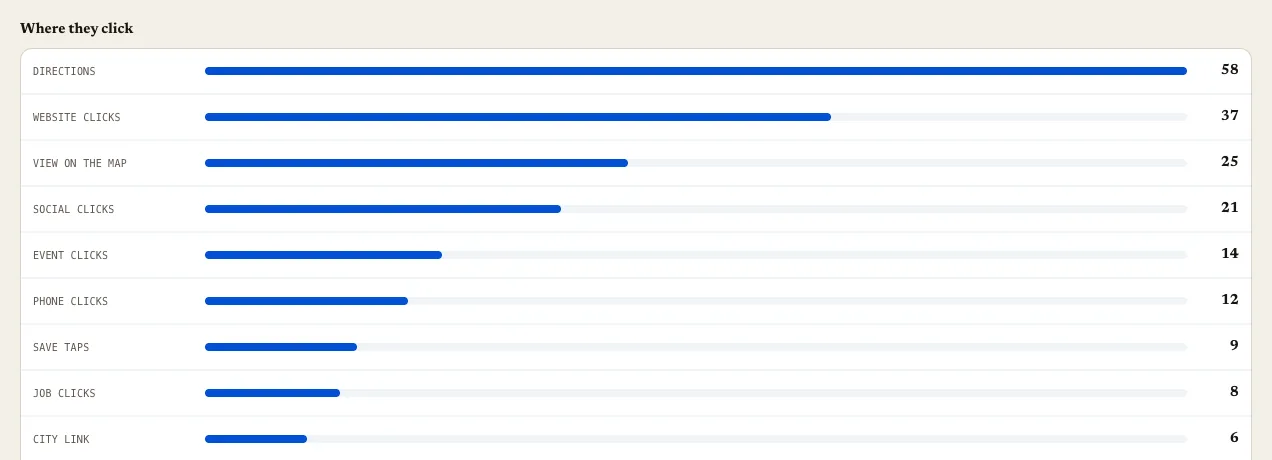
Further down are Event sign-ups and Job applicants, with their contact details.
If an event or job uses an external link, it shows under Managed outside the guide with its Link clicks: that's the only thing we can measure when sign-up happens on your own site.
What happens next
The data builds up on its own. Come back whenever you like: there's nothing to switch on.
Common issues
Everything is zero. Your page is new, isn't live yet, or nobody has visited it in that period. You'll see No data yet for this period.
My visits look low. We only count people who accept measurement in the website's cookie banner. It's the same rule for every profile.
I can't see "Customers". Only the owner, Admin and Manager users see it. It doesn't appear with the Viewer role.
Was this guide helpful?