Complete your profile to get it published
Fill in your company's details, logo, cover image and description so our team can publish it in the guide.
阅读时间:5 min更新于 2026年11月11日
这篇指南还没有你的语言版本,因此以英文显示。
Your page on the Origin Map is what roasters look at. Complete it and our team publishes it.
Before you start
- You need to be the verified owner of the profile, or be on its team with the Admin or Manager role. If you aren't yet, see Claim your company's profile.
- Have to hand: your logo (square, 600 × 600 px or larger), a landscape photo for the cover (ideally 1920 × 480 px), a contact email or phone number, and the location of your office or warehouse.
What you'll get: a complete profile, ready for our team to review and publish.
Steps
1. See what's missing
At the top of the dashboard there's a box showing your page's status:
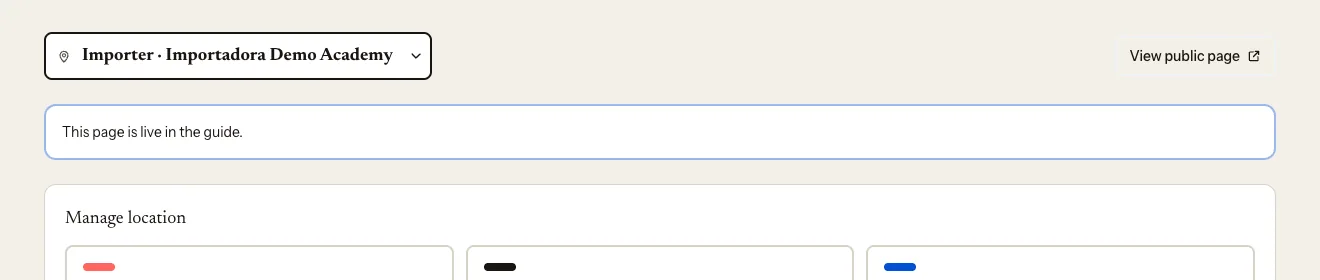
- Not ready to publish yet: the list below it shows what's missing.
- Everything's here. The team reviews it before it goes live.: there's nothing else for you to do.
- This page is live in the guide.: it's already on the Origin Map.
To publish an importer we need:
- The map pin — latitude and longitude.
- The country.
- The city where you're based.
- A way to get in touch.
- The origins you work with.
- At least one coffee in your catalogue.
You don't type the origins anywhere: they come from the countries of the farms in your catalogue. As soon as you add your first coffee, that line goes away. See Add a coffee to your catalogue.
There's no publish button: once the list is complete, our team publishes the page.
2. Fill in "The company"
Scroll down to The company.
Search for your City: where your office or warehouse is. If it doesn't show up, tap It's not here and type its name.
Enter the Latitude and Longitude of your office or warehouse. Both numbers or neither. To get them: in Google Maps, right-click the exact spot; the two numbers appear at the top of the menu and copy with one click.
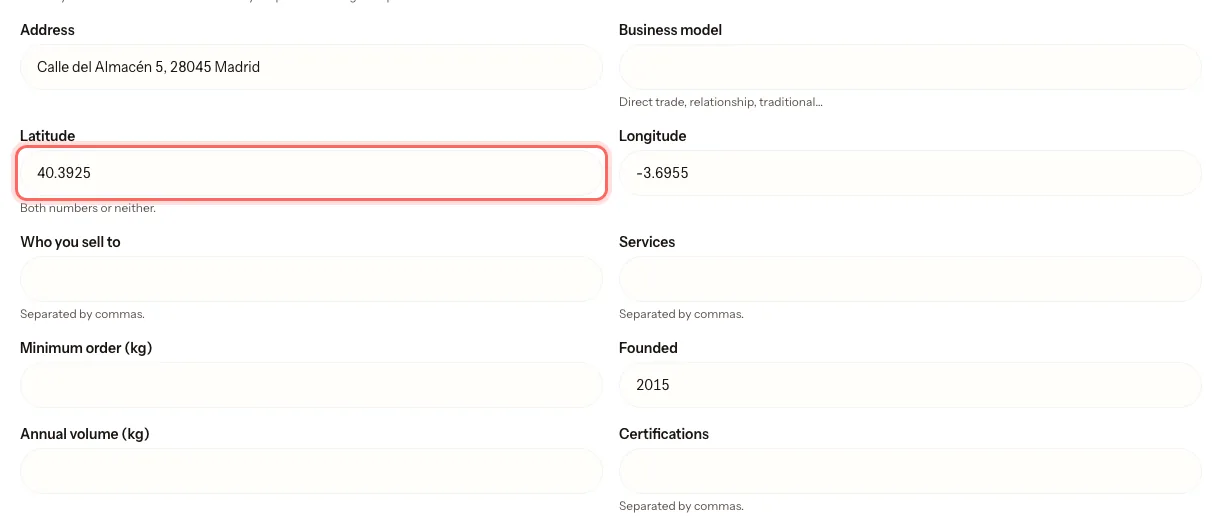
Fill in whatever you'd like to share: Address, Business model, Who you sell to, Services, Minimum order (kg), Founded, Annual volume (kg) and Certifications. In the lists, separate items with commas.
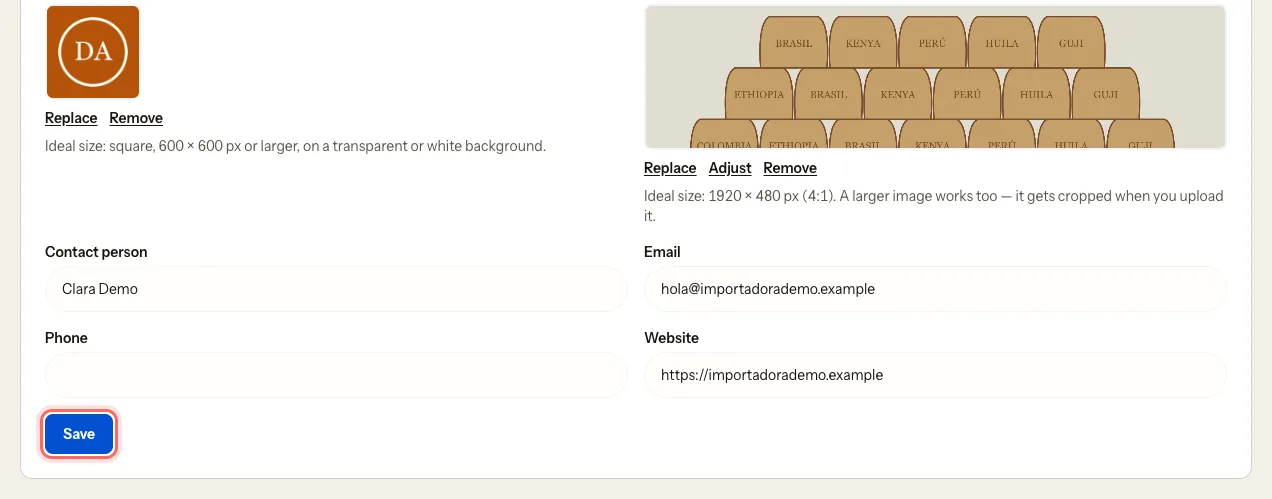
Fill in your contact details: Contact person, Email, Phone and Website. One is enough to publish.
Tap Save. You'll see Saved.
The name and the country can't be edited here. To change them, see Request a name change.
3. Upload your logo and cover image
Logo
- Under Logo, tap Upload an image and choose the file.
Cover image
Under Cover image, tap Upload an image and choose the file.
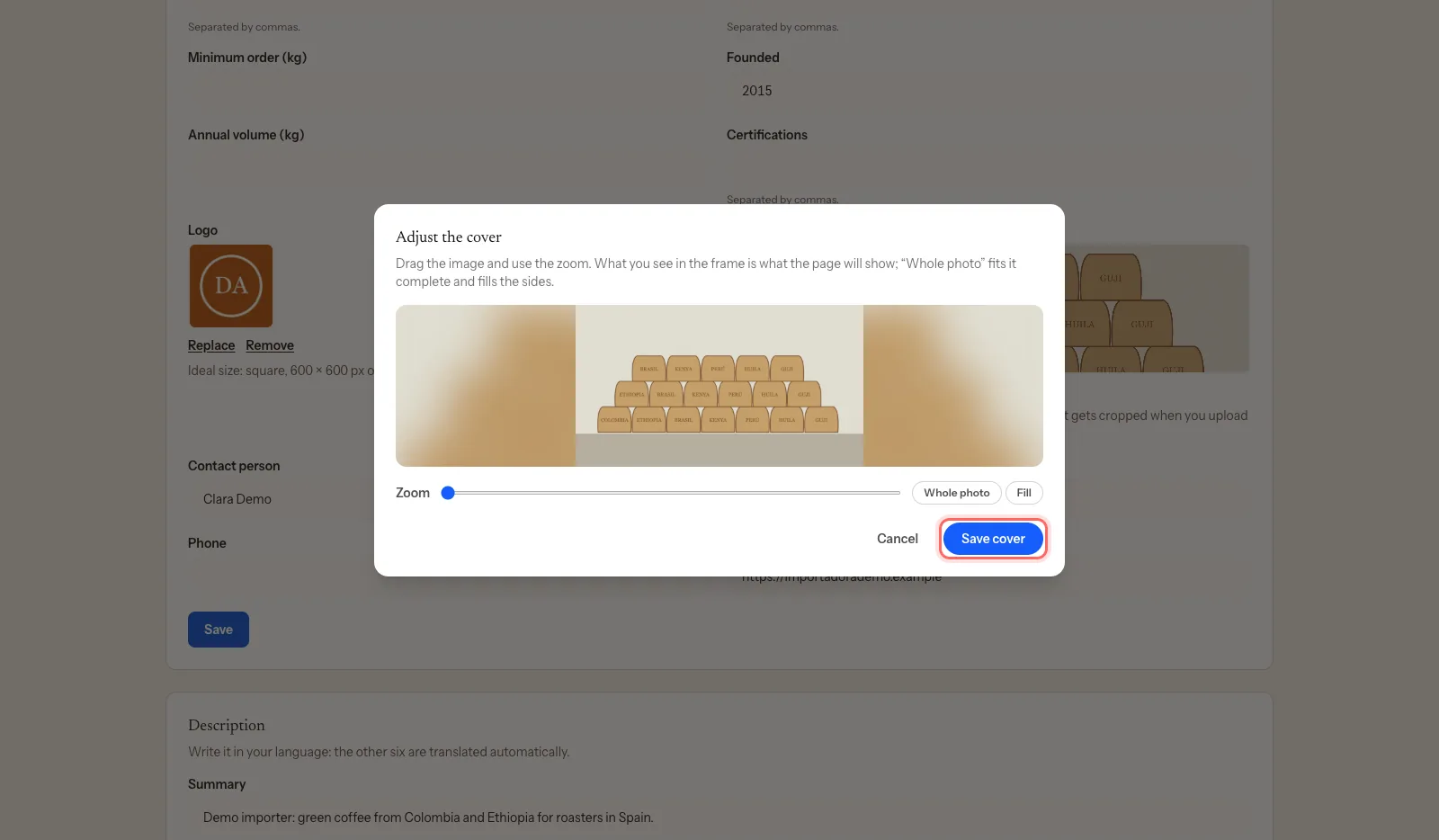
Adjust the cover opens. Drag the image and use Zoom until the frame shows what you want. Whole photo fits the full picture; Fill covers the whole frame.
Tap Save cover.
Important: after uploading the logo or the cover, tap Save at the bottom of The company. Otherwise they won't be saved.
To change them later you have Replace, Adjust and Remove.
4. Write your description
Scroll down to Description.
Write a short Summary and, if you like, a longer Description: which origins you work with, how you choose your coffees, what services you offer.
Tap Save. You'll see Saved. The other languages will follow shortly.
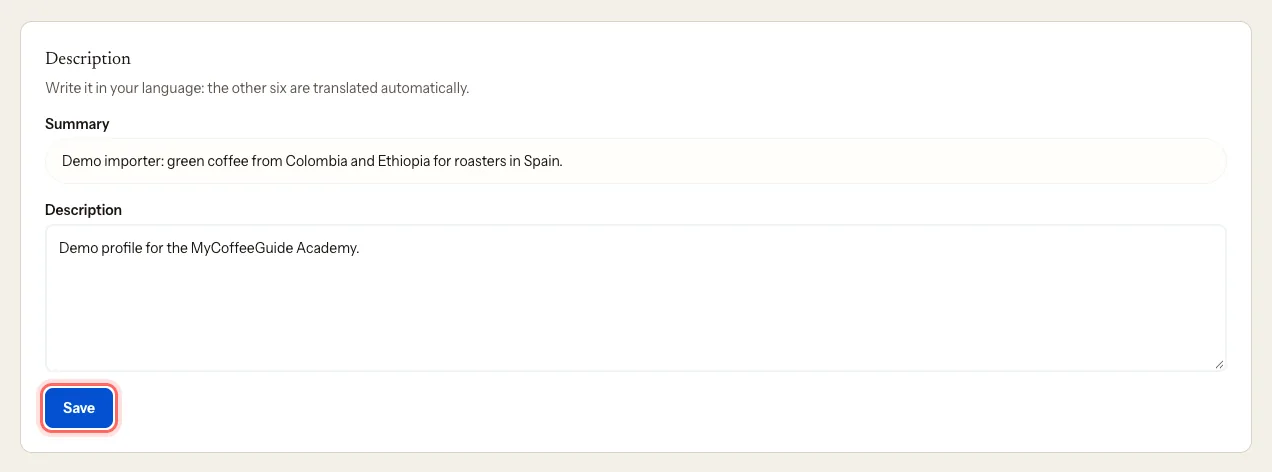
Write it in your own language: the guide translates it into the other six automatically.
What happens next
- When the box says Everything's here. The team reviews it before it goes live., our team reviews the profile and publishes it.
- Once it's live, View public page appears at the top of the dashboard.
- You can keep editing the profile whenever you like, including after it's published.
Common issues
I uploaded the cover and it isn't showing. You didn't tap Save at the bottom of The company. Upload it again and save.
The cover looks blurry. If the crop is less than 1920 px wide, the portal warns you. Zoom out or use a larger image.
I still see "The origins you work with." You don't have any coffee in your catalogue yet. Add one and link it to its farm.
I see "Something's still missing. Write to us and we'll tell you what." Write to us at mycoffee.guide/contacto and we'll tell you what's missing.
I see "Your claim is still pending". We're still confirming the profile is yours. You'll be able to save once we approve it.
I see "Your role on this team can only view". Your role is Viewer. Ask an admin on the team to change it to Manager.
这篇指南有帮助吗?